What is Milk-V?
The Milk-V Jupiter is a RISC-V SBC built around the SpacemiT K1 SoC (8× X60 cores with RVV). This post documents flashing Bianbu OS to an NVMe SSD, and the challenges following the official Milk-V documentation.
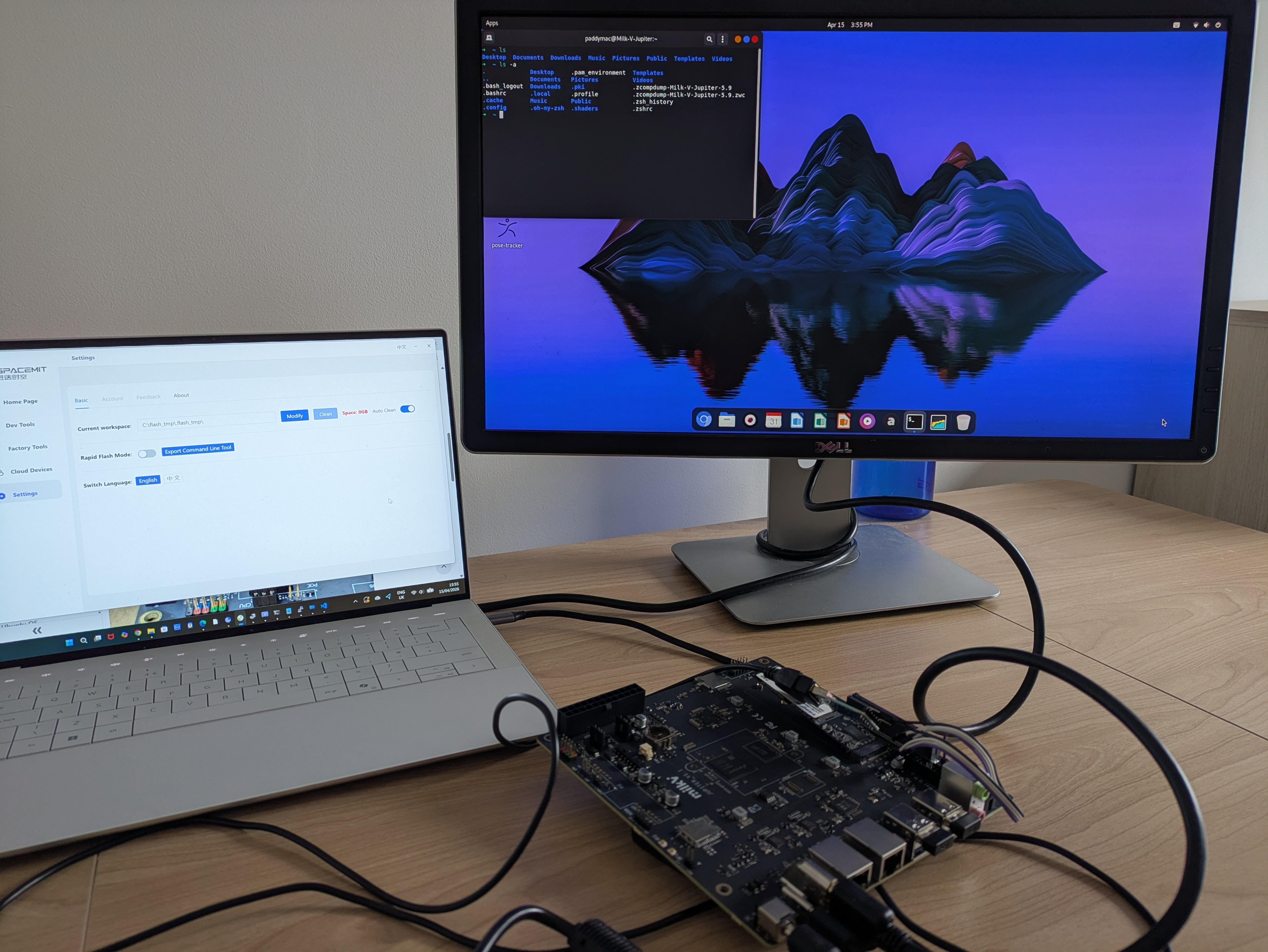
Overview
The official flashing path uses Spacemit’s titanflasher GUI tool, which decompresses the firmware zip to a temp directory at before writing to the SSM device. On some Windows configurations it reports 0 GB available at that path regardless of actual free space — a bug that cannot be worked around by running as administrator or adjusting permissions. The solution is to bypass titanflasher entirely and flash directly via fastboot.
1. Firmware
Download the Bianbu desktop image from the Milk-V Jupiter releases page. The desktop image exceeds GitHub’s 2 GB file limit and is split across two volumes:
milkv-jupiter-bianbu-*-desktop-*.zip.001
milkv-jupiter-bianbu-*-desktop-*.zip.002
Both files must be in the same directory. Right-click the .001 file in 7-Zip and select Extract Here — 7-Zip detects the split archive automatically and produces the reassembled .zip. Then extract the .zip to a working directory, e.g. C:\jupiter_firmware\. The result should contain FSBL.bin, u-boot.itb, rootfs.ext4, bootfs.ext4, and supporting partition files.
Note: the
.img.zipvariant is for SD card use only (balenaEtcher,dd). The plain.zipis for SSD and eMMC. Do not extract the.zipfurther before flashing viatitanflasher— but for thefastbootpath described here, full extraction is required.
2. Tools
Android Platform Tools (fastboot.exe)
Download from developer.android.com/tools/releases/platform-tools and extract to C:\platform_tools\.
Zadig (USB driver replacement)
Download from zadig.akeo.ie. Required to replace the default Windows USB driver on the device with one fastboot can use.
3. Recovery Mode and USB Driver
Connect the Jupiter to the PC via Type-C. Hold the RECOVERY button on the board, then apply power. Release RECOVERY after 2–3 seconds.
Open Zadig: Options → List All Devices. Select USB download gadget from the dropdown. The current driver shown on the left will be WinUSB — this is sufficient. If it shows something else, replace it with libusbK.
Verify the device is visible to fastboot:
cd C:\platform_tools\platform-tools-latest-windows\platform-tools
.\fastboot.exe devices
Expected output:
dfu-device fastbootIf nothing appears, the board is not in recovery mode or the driver swap did not take. Re-enter recovery mode and repeat.
4. Flashing
Run the following commands in sequence from the platform-tools directory. Replace the firmware path with your actual extraction directory.
$fw = "C:\jupiter_firmware\milkv-jupiter-bianbu-24.04-desktop-k1-v2.1.1-release-2025-0305"

.\fastboot.exe stage "$fw\factory\FSBL.bin"
.\fastboot.exe continue
Start-Sleep -Seconds 3

.\fastboot.exe stage "$fw\u-boot.itb"
.\fastboot.exe continue
Start-Sleep -Seconds 4

# SPI Flash partitions
.\fastboot.exe flash mtd       "$fw\partition_2M.json"
.\fastboot.exe flash bootinfo  "$fw\factory\bootinfo_spinor.bin"
.\fastboot.exe flash fsbl      "$fw\factory\FSBL.bin"
.\fastboot.exe flash env       "$fw\env.bin"
.\fastboot.exe flash opensbi   "$fw\fw_dynamic.itb"
.\fastboot.exe flash uboot     "$fw\u-boot.itb"

# SSD/eMMC partitions
.\fastboot.exe flash gpt       "$fw\partition_universal.json"
.\fastboot.exe flash bootinfo  "$fw\factory\bootinfo_sd.bin"
.\fastboot.exe flash fsbl      "$fw\factory\FSBL.bin"
.\fastboot.exe flash env       "$fw\env.bin"
.\fastboot.exe flash opensbi   "$fw\fw_dynamic.itb"
.\fastboot.exe flash uboot     "$fw\u-boot.itb"
.\fastboot.exe flash bootfs    "$fw\bootfs.ext4"
.\fastboot.exe flash rootfs    "$fw\rootfs.ext4"

Start-Sleep -Seconds 3
.\fastboot.exe reboot
The rootfs partition is large (~8 GB) and is transferred as 27 sparse chunks — expect around 4 minutes total. Every partition should report OKAY. On completion fastboot reboot restarts the board into the flashed OS.
5. Serial Console (Optional)
The Jupiter exposes a debug UART on the N308 UART header (3.3V logic, do not connect VCC). Wire to a CP2104 USB-UART adapter:
| Jupiter | CP2104 |
|---|---|
| GND | GND |
| RX | TXD |
| TX | RXD |
Install the CP210x Windows driver if the adapter appears under Other Devices in Device Manager rather than Ports (COM & LPT). Open PuTTY with the assigned COM port at 115200 8N1, flow control: none.
6. Result
After reboot the board boots directly to the Bianbu desktop via HDMI. The SSD and eMMC images expand the root filesystem automatically on first boot — no manual gparted step required, unlike the SD card image.
Excellent. The board is now ready to test some kernels natively on the K1’s X60 cores to validate the gem5 cycle-accurate simulation results from previous posts..